 Liwu
LiwuHow to Hide Menu Bar Icons on a Mac
Published · Liwu behavior checked against 2.2.5 ()
To take an icon out of the Mac menu bar, turn it off in System Settings → Menu Bar, or drag it off the bar while editing Control Center. Both remove the icon until you add it back. If you want icons out of sight but still one click away — a VPN, sync, or meeting status you check once a day — keep them in a hidden group that you can reveal on demand. Liwu does this for free on Apple silicon MacBooks running macOS 26.7 or later.
Verified: Apple documentation and Liwu 2.2.5 behavior checked October 4, 2026.
| You want to… | Use |
|---|---|
| Stop showing an icon you never use | System Settings → Menu Bar |
| Remove a control you added from Control Center | Control Center → Edit Controls |
| Keep an icon available but out of sight | A hidden group you can reveal |
| Clear the whole bar while you work | Automatically hide and show the menu bar |
Remove an icon with macOS settings
In macOS Tahoe 26, menu bar items have their own settings pane:
- Choose Apple menu → System Settings, then select Menu Bar in the sidebar. You may need to scroll down.
- Under Menu Bar Controls, deselect a system item such as Wi-Fi, Bluetooth, Focus, Sound, or Now Playing.
- Under Allow in the Menu Bar, deselect an item that another app provides.
Select the item again to bring it back. Apple notes that the clock is always shown in the menu bar.
For a control you added from Control Center, open Control Center from the menu bar, choose Edit Controls, and drag the item off the menu bar.
You can also change the order of icons by holding Command while you drag one along the menu bar. Keep the drag inside the bar: releasing the icon outside it removes the item.
Hide the whole menu bar
The same settings pane has Automatically hide and show the menu bar, with four choices: Always, On Desktop Only, In Full Screen Only, and Never. This hides everything at once, including app menus, and brings the bar back when you move the pointer to the top of the screen. It does not let you choose which icons stay.
Removed is not the same as hidden
The built-in settings remove an icon. The app behind it keeps running, but its status and menu are gone from the bar until you turn the item back on in System Settings.
A hidden icon is still in the menu bar. It sits in a group that is kept off screen and can be shown again without opening System Settings. That suits icons you rarely need but do not want to lose: you glance at them when something looks wrong, then put them away.
Keep icons in a hidden group with Liwu
Liwu's menu bar organization is part of the free tier.
- Open Liwu from the menu bar and select the Menu Bar tab. The same controls are in the main window under Menu Bar.
- Allow Accessibility and Screen Recording when Liwu asks. Each button opens the matching pane in System Settings.
- Liwu lists your icons in two groups, Hidden and Visible. On first use every icon starts in Visible.
- Drag an icon into Hidden, or right-click it and choose Move to Hidden.
- Use the eye button to show the hidden group temporarily, and again to put it away.
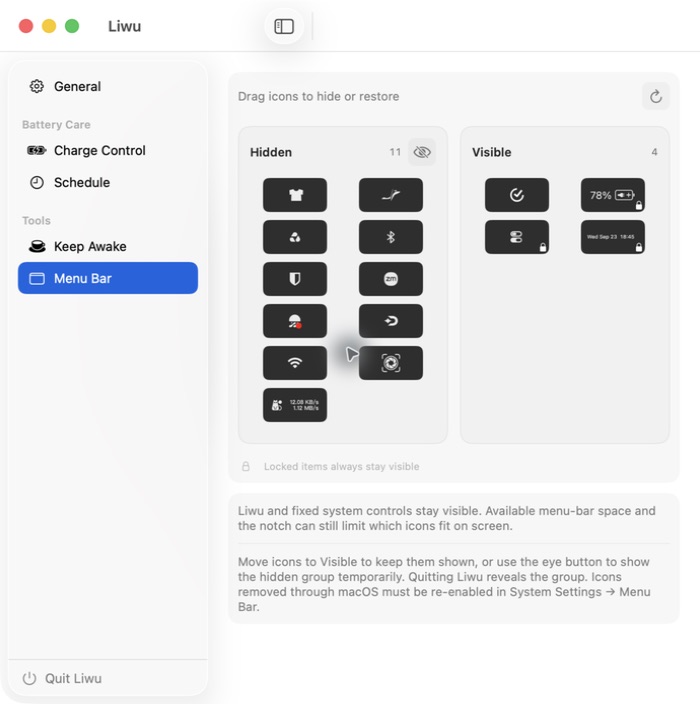
Liwu adds a thin separator to the menu bar. Icons to the left of it form the hidden group, and Liwu widens the separator to move that group off screen. After each change it checks that macOS applied the layout and that its own icon is still visible. If macOS does not confirm a move, Liwu shows the group again and reports the problem instead of displaying a layout it could not verify.
Why it asks for two permissions
- Accessibility lets Liwu move a menu bar item. It performs the same Command-drag you could do by hand.
- Screen Recording lets Liwu read what each icon looks like, so the list shows real icons rather than names. It reads them only while you are using the Menu Bar page, and the images stay in memory on your Mac: they are not saved to disk or sent anywhere.
Any tool that rearranges other apps' menu bar items needs system access of this kind. Review it the same way you would review other privileged software; the MacBook charge limiter safety checklist covers signing, notarization, network boundaries, and removal, and Liwu's safety and system access page lists what Liwu itself does.
What stays visible, and other limits
- Locked items. Liwu's own icon, Control Center, and the clock always stay visible, so there is always a way back to the settings.
- Space and the notch. Available menu bar space and the display notch can still limit which icons fit on screen. A hidden group gives the visible icons more room; it does not make the bar wider.
- Icons removed in macOS. An item you turned off in System Settings is not in the menu bar, so Liwu cannot list it. Turn it back on under System Settings → Menu Bar first.
- Liwu must be running. Quitting Liwu shows the hidden group again. Turn on Launch Liwu at Login to keep your grouping after you sign in.
- Restart. Your Hidden and Visible groups are kept across a restart; you do not need to sort the icons again.
FAQ
Does hiding an icon quit the app?
No. Hiding only changes where the icon sits. The app keeps running and its menu works as soon as you show the group.
Why is an icon missing from Liwu's list?
Either its app is not running, or the item was turned off in System Settings → Menu Bar. Start the app or turn the item back on, then select the refresh button on Liwu's Menu Bar page.
Why can't I hide the clock or Control Center?
macOS keeps the clock in the menu bar, and Liwu treats Control Center and its own icon as fixed too. Keeping those in place guarantees you can always reach the controls that show the hidden group.
Is there a built-in way to hide icons without removing them?
Apple's documented options add or remove individual items, or hide the entire menu bar. They do not describe a group of icons that stays in the bar but out of view.
Does this work on a Mac that is not a MacBook?
Liwu 2 supports Apple silicon MacBooks on macOS 26.7 or later. See compatibility and runtime boundaries for the supported hardware and system versions.
Sources
- Apple Mac User Guide: Change Menu Bar settings on Mac
- Apple Mac User Guide: Customize the menu bar on Mac
- Liwu: Safety and system access
- Liwu: Compatibility and runtime boundaries