 Liwu
Liwu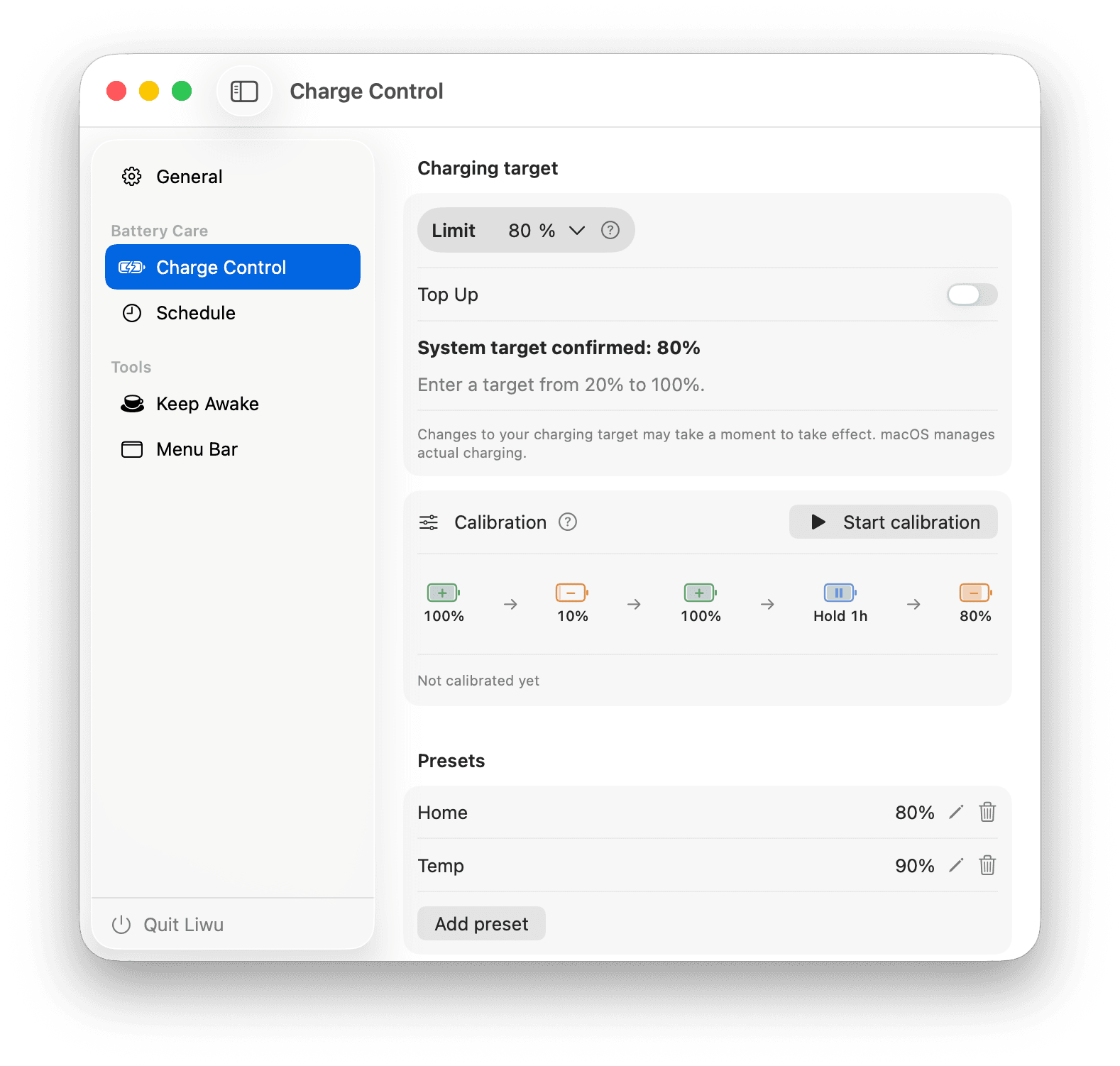
Charge limits. Tidy menu bar.
A better Mac day.
Set a MacBook charge limit, see where power comes from, hide the menu bar icons you rarely use, and keep your Mac awake for long jobs. Add lid-closed Keep Awake, Sailing, calibration, and schedules with Pro. Small, native tools that stay out of your way.
50% off until November 30
Apple Silicon · macOS 26.7+
- 20–100%
- Targets on supported Macs
- 1×
- Pro purchase

Regular target · 80%
Kept during calibration
Keep Awake
Battery calibration
Five guided steps

Liwu at a glance
The product facts most people need before installing Liwu.
- Compatibility
- Apple Silicon MacBook · macOS 26.7+
- Price
- Core features free · Pro $9.99 one-time
- App data
- Battery, configuration, and usage data stay on your Mac
- System access
- One approved local helper submits targets and runs system tools
- Current release
- 2.16.0 · 2026-10-15
Charging & power · Free
A target that fits your day
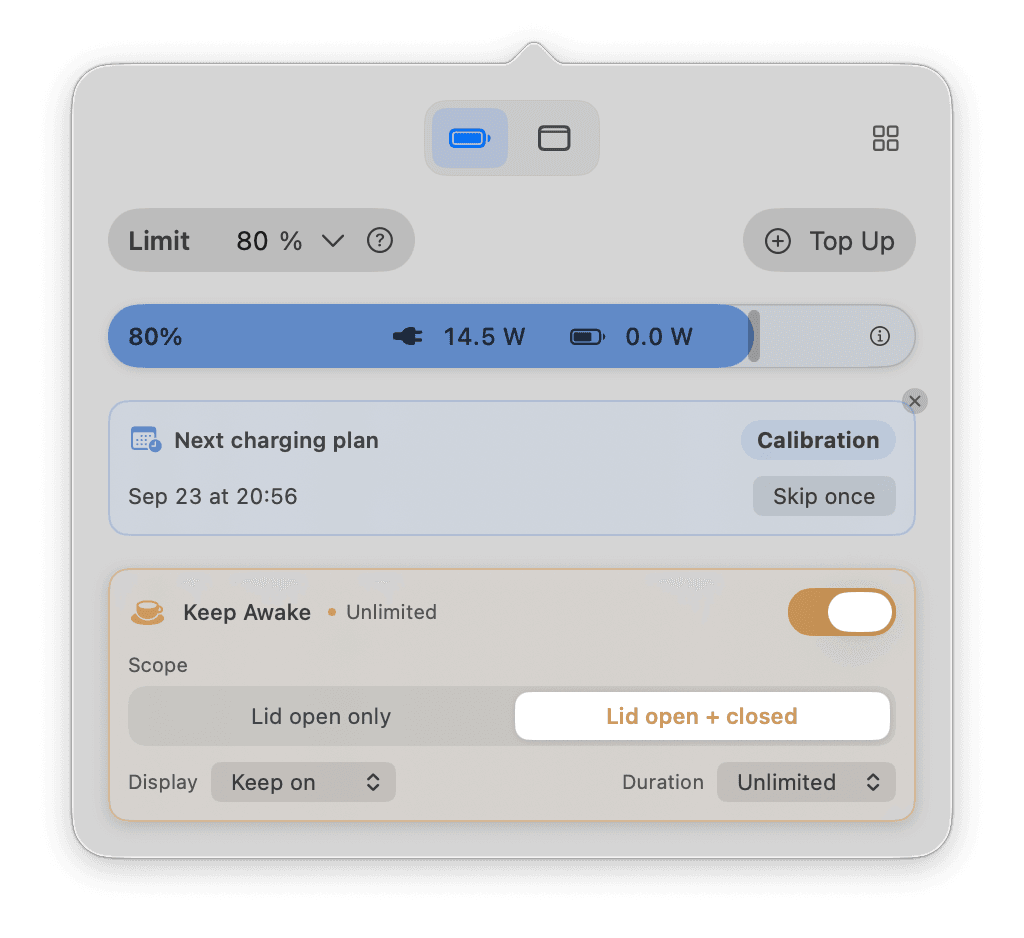
Choose a target from 20% to 100% on supported Macs. The battery bar puts your level, target, adapter input, and battery charging or discharging power in one place.
- Targets below 80% appear after a capability check
- Save presets; use Pro Top Up when you need 100%
- Low targets use raw battery capacity, so the displayed percentage can differ
Menu bar · Free
Keep the icons you reach for
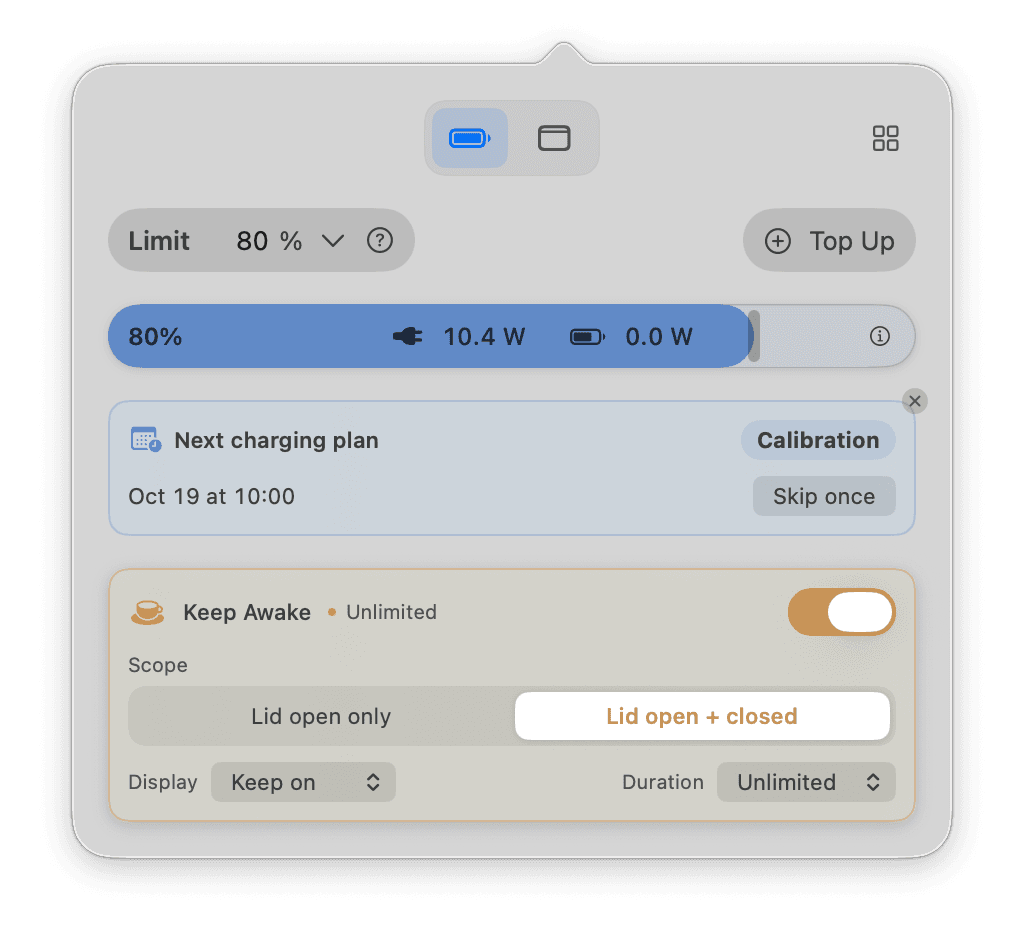
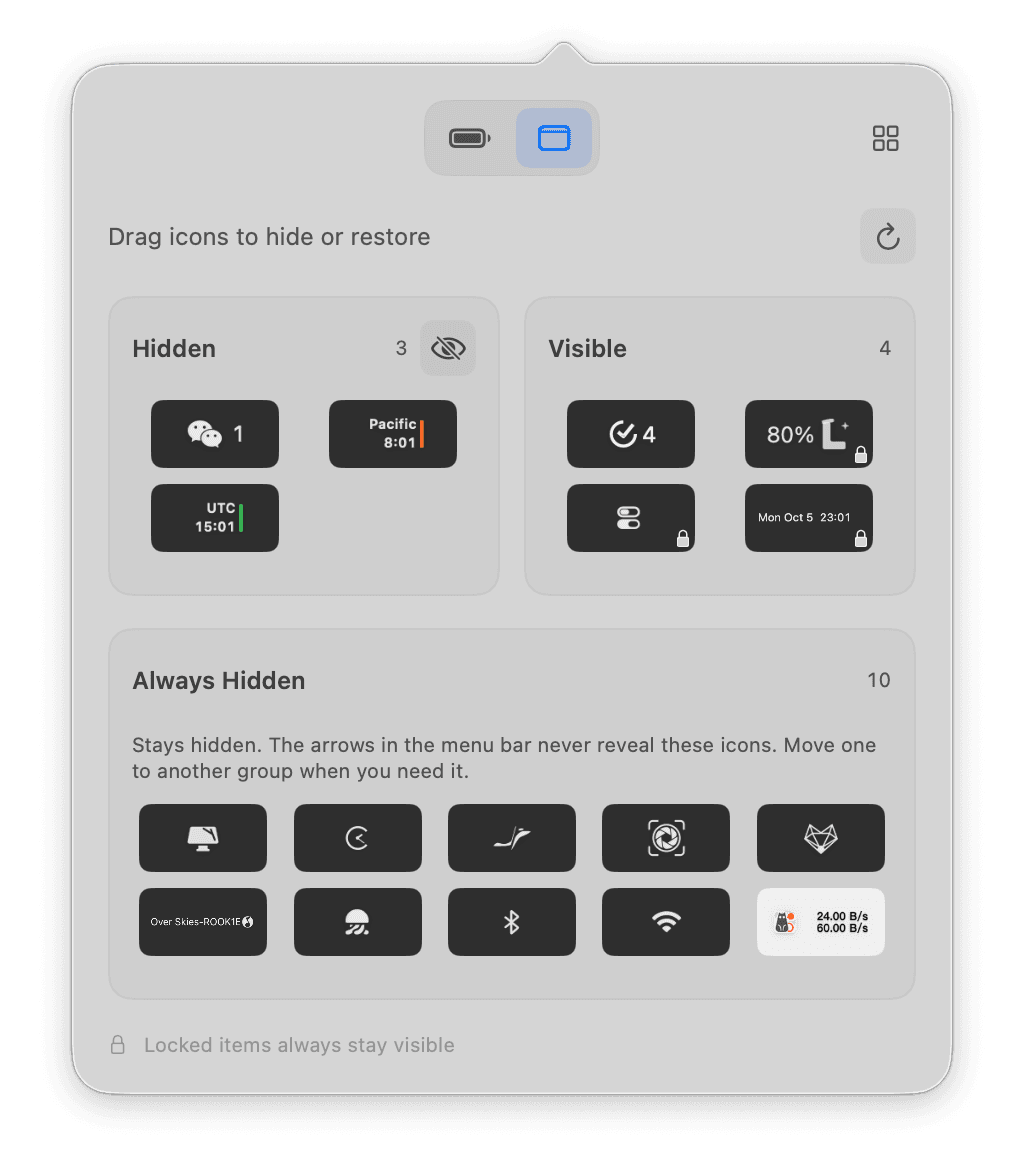
Sort real icons into Always Hidden, Hidden, and Visible inside Liwu. Arrows in the menu bar show or hide the Hidden group in one click; Always Hidden icons stay out of the bar until you move them.
- Click the arrows in the menu bar to show or hide the Hidden group
- Manage from the popover or the main window
- Liwu and fixed system controls stay visible
- Accessibility moves icons; Screen Recording reads their images locally

Battery calibration · Pro
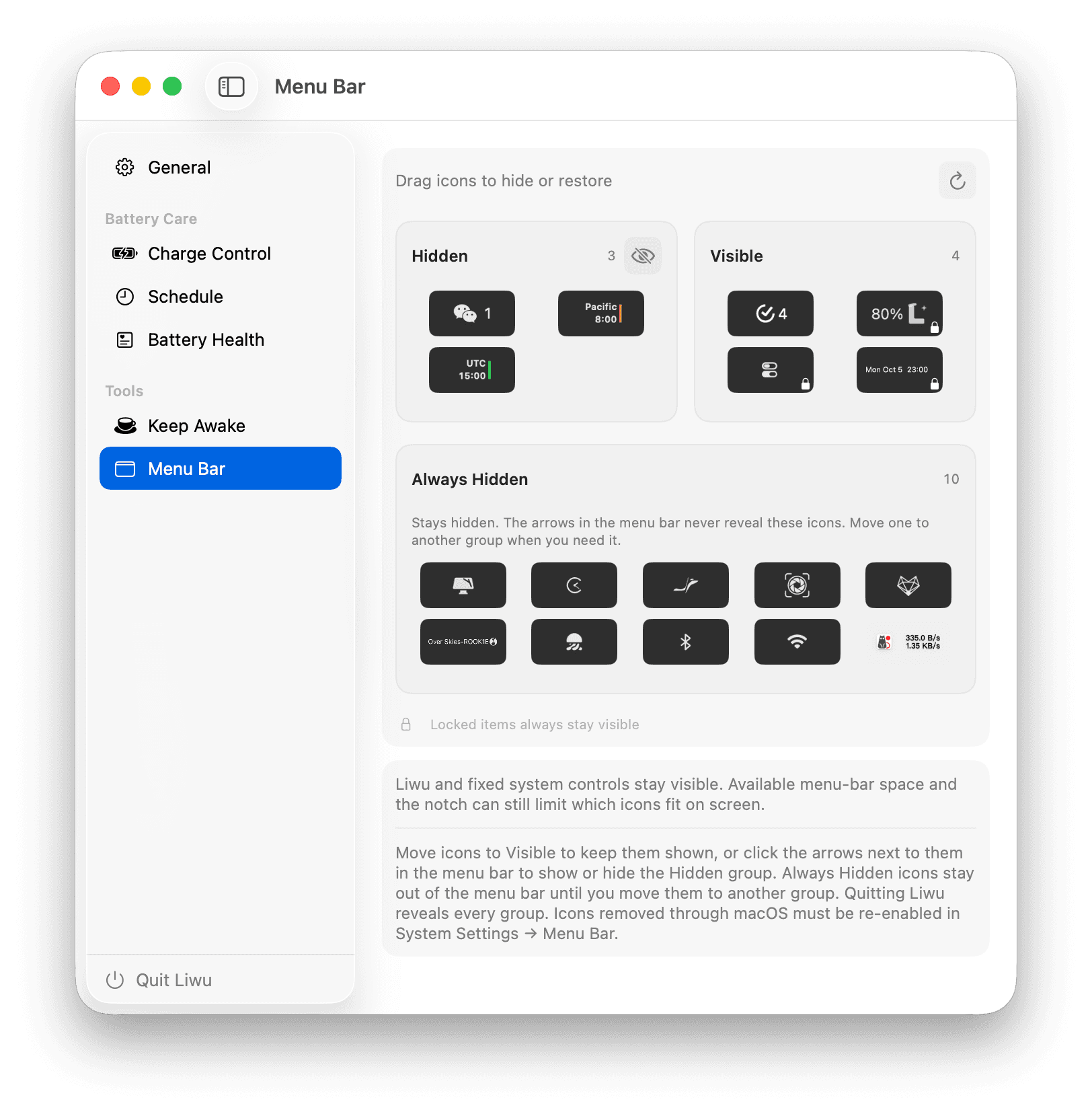
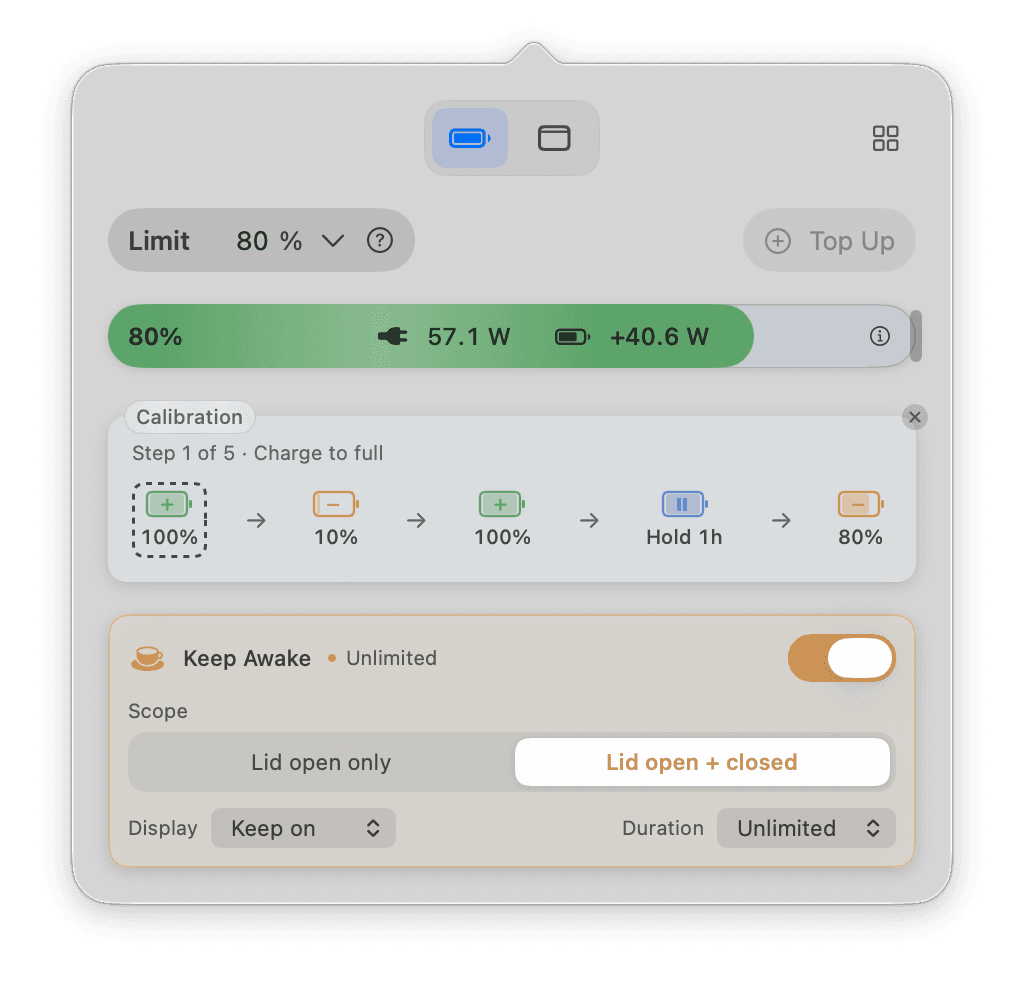
One cycle. Every step in view.
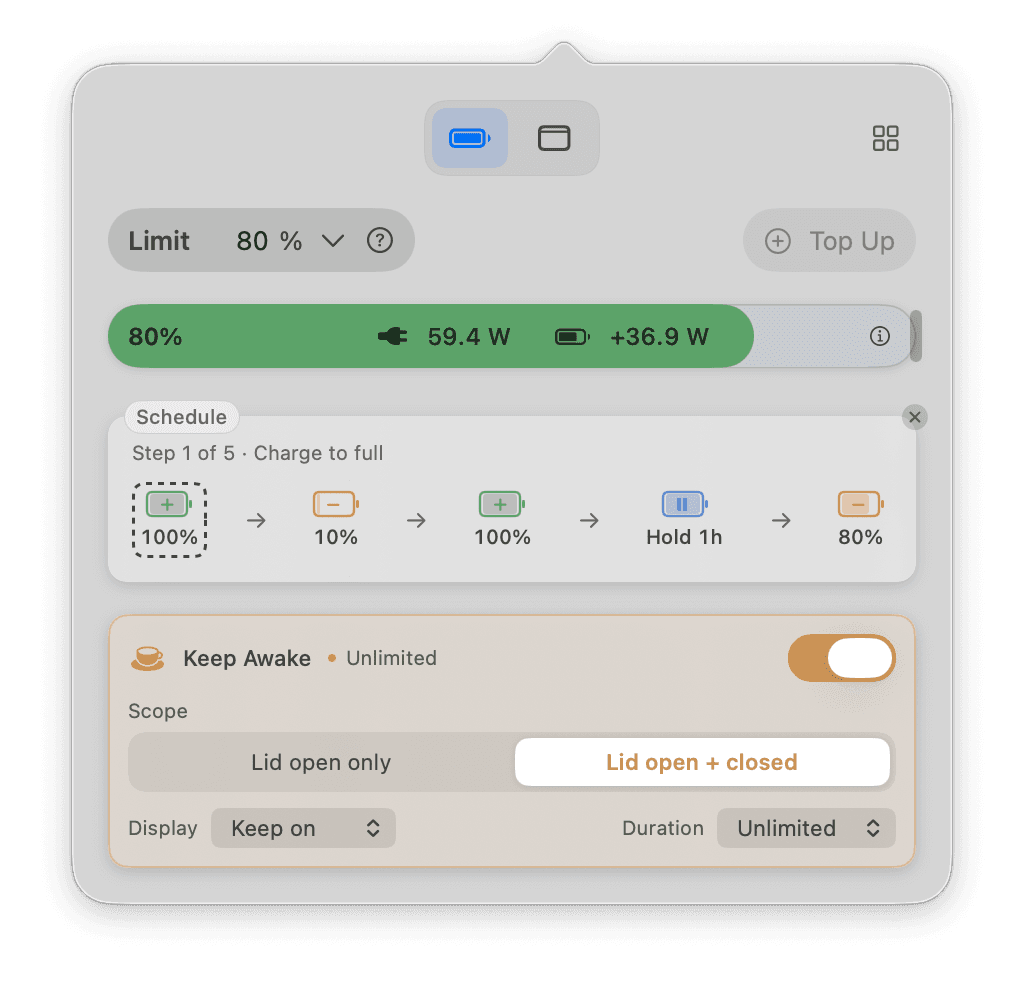
Follow a five-step cycle: charge to full, discharge to 10%, charge to full again, hold for an hour, then return to your regular target. Keep power connected and leave Liwu running.
- Start manually or from a calibration plan
- Progress follows battery readings, not just the displayed 100%
- Requires available low-target control and Optimized Battery Charging turned off
Long jobs, uninterrupted
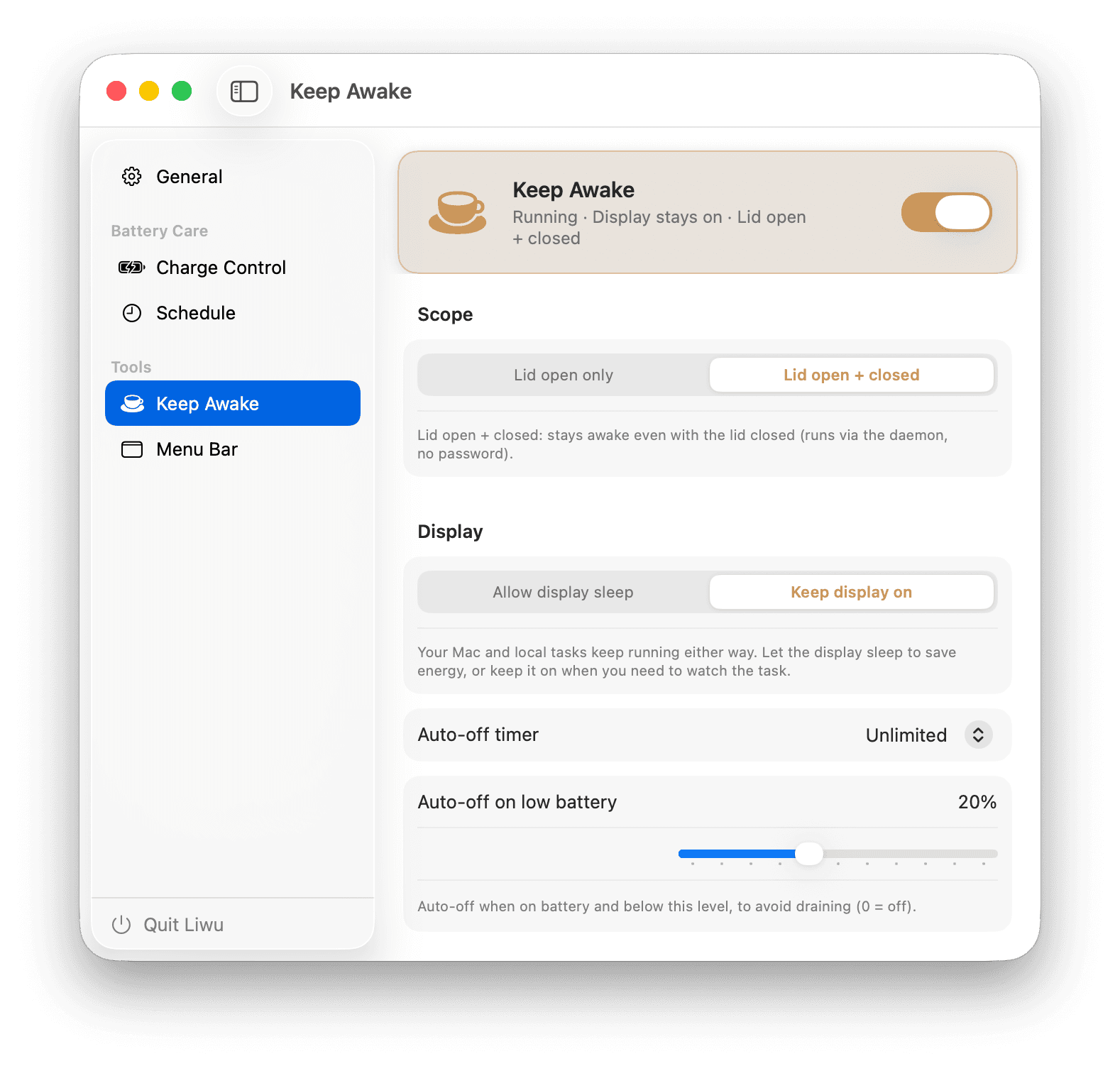
Close the lid. Your AI keeps working.
Keep local coding agents, builds, tests, renders, and downloads running with the lid closed, on a ventilated surface. Let Keep Awake turn on while your Mac is connected to power: unplug it, and Keep Awake turns off and a closed Mac goes to sleep instead of draining in your bag.
- Lid-closed operation · Pro
- On while plugged in, off when unplugged · Pro
- Timer and low-battery cutoff
Plans · Pro
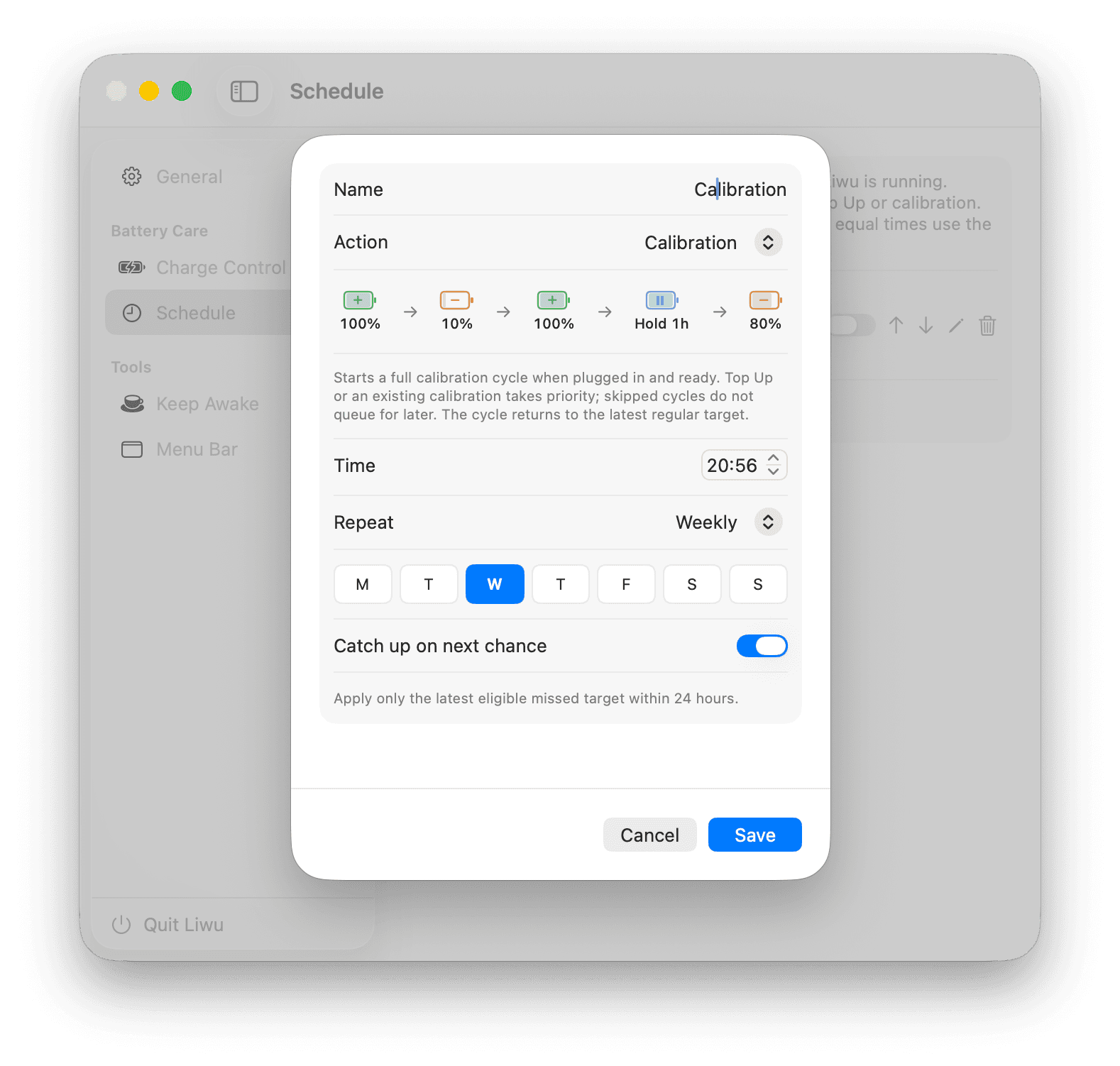
Targets, Top Up and calibration, on your schedule
Create a target plan, a Top Up plan or a calibration plan. Choose when it runs and whether a missed run can catch up. Plans run while Liwu is running and your Mac is awake.
- Once, daily, weekly, biweekly, or monthly
- Preview, skip once, or disable the next plan from the popover
- Top Up and calibration plans need power connected; a run that cannot start is skipped, not queued
All features at a glance
The free tier already delivers; Pro unlocks advanced features, convenience, and automation.
Charging targets · 20–100%
Below 80% requires supported low-target control; otherwise the minimum stays at 80%.
Named presets
Save your favorite targets and switch between them.
Power in the battery bar
Adapter input and signed battery power, with charge direction. Details on demand include the connected adapter's name, rated power, and the voltage and current in use, as macOS reports them.
Menu bar organization
Sort real icons into Always Hidden, Hidden, and Visible. Show or hide the Hidden group from arrows in the menu bar.
Menu bar readouts
Beside the percentage, show the time remaining, the power and the battery temperature. While charging, the time counts to your charge limit, not to 100%.
Optimized Battery Charging
See when OBC conflicts with charging management and turn it off from Liwu.
Keep Awake · Lid Open
Keep long jobs running with a timer and low-battery cutoff.
Battery health history
One reading a day of maximum capacity and cycle count, charted over time and kept only on your Mac. A sleep report shows what each sleep cost and how often the Mac woke briefly, read from the Mac's own power log.
Notifications
Get a warning at a battery level you choose, for the Mac and for accessories that report their level to macOS. Also hear when calibration ends, a plan does not run, or charging control needs attention.
Energy use by app
See which apps macOS counts as using significant energy right now, in the main window and in the menu bar popover. Liwu reads macOS’s own account, in which an app counts with everything it started, and you choose from which level an app is listed.
Low Power Mode
Set macOS’s Low Power Mode from Liwu: never, always, only on battery, or only on the power adapter.
Top Up
Temporarily request 100% without losing your regular target.
Sailing · Charging range
Choose a 5–20 percentage-point drop before recharging. Requires verified firmware support, even with a limit of 80% or higher.
Heat Protection
Liwu pauses charging while the battery is charging at or above a temperature you choose, from 35°C to 45°C, until it is 3°C cooler. While the Mac sleeps, no pause begins, and one in force ends at a brief background wake once the battery has cooled. Requires verified firmware support.
Battery calibration
A visible five-step cycle that returns to your latest regular target.
Target, Top Up & calibration plans
Schedule targets, Top Up or full calibration cycles, with skip-next and catch-up controls.
Keep Awake · Lid Closed
Keep working with the lid closed using the approved local helper.
Keep Awake · Automatic
Keep Awake turns on while apps you choose are running, while the Mac is connected to power, or while an external display is connected, and off when that ends. The popover shows what is keeping it on.
Menu bar shortcut, hover & auto-hide
Show or hide the Hidden group with a keyboard shortcut, show it by resting the pointer on the empty part of the menu bar, and have it hide again by itself.
Energy use history
Each app’s share of all energy use over the last hour and the last 12 hours, in percent, from the record macOS itself keeps.
Low Power Mode by battery level
Liwu switches Low Power Mode on when the battery falls to a level you choose, and off again once it has charged above it. It works while Liwu is running.
Bluetooth off during sleep
With the lid closed and no display connected, Liwu turns Bluetooth off while the Mac sleeps, so a Mac in a bag does not connect to your headphones, and back on when you wake it. Bluetooth you had turned off stays off.
MacBook Guides
Practical explanations of charge limits, battery health, macOS charging behavior, and the menu bar.
How to Hide Menu Bar Icons on a Mac
Remove icons with macOS Menu Bar settings or Control Center, or keep them one click away in a hidden group. Steps, permissions, and limits for macOS 26.
How to Keep a Mac Awake for AI Agents and Long-Running Tasks
Keep local AI coding agents, builds, tests, renders, and downloads running while a Mac display sleeps, using macOS settings, caffeinate, or Liwu.
Pricing
Download free to use the core features. Want everything? Pro is a one-time purchase.
| Feature | Free $0 | Liwu Pro one-time |
|---|---|---|
| Charging targets · 20–100% | ||
| Named presets | ||
| Power in the battery bar | ||
| Menu bar organization | ||
| Menu bar readouts | ||
| Optimized Battery Charging | ||
| Keep Awake · Lid Open | ||
| Battery health history | ||
| Notifications | ||
| Energy use by app · Now | ||
| Low Power Mode | ||
| Top Up | ||
| Sailing · Charging range | ||
| Heat Protection | ||
| Battery calibration | ||
| Target, Top Up & calibration plans | ||
| Keep Awake · Lid Closed | ||
| Keep Awake · Turn on automatically | ||
| Menu bar shortcut, hover & auto-hide | ||
| Energy use history · Last 12 hours | ||
| Low Power Mode · By battery level | ||
| Bluetooth off during sleep |
50% off until November 30
One-time purchase · no subscription · Liwu 1 Pro also unlocks Liwu 2 Pro.
Paying with WeChat Pay? Confirmation takes a few minutes, usually 5 to 10. Once your phone shows the payment went through, don't pay again or choose Retry. Keep this page open and it will move on to activation by itself; we also email you an activation link.
Targets below 80%, Sailing, Heat Protection and calibration depend on your Mac. Install the free version first: it shows what your Mac supports.
Useful tools, right in your menu bar
Charging targets and Keep Awake, together in Liwu 2.
Or install with Homebrewbrew install --cask urfreespace/liwu/liwu
Apple Silicon · macOS 26.7+
FAQ
Is it safe? Why does it need a background daemon?
Charging and lid-closed Keep Awake use a signed local helper. Without Sailing, targets from 80% use the native system interface. Lower targets, calibration, and Sailing require verified firmware support and readback checks. Menu bar organization separately needs Accessibility and Screen Recording; icon images remain on your Mac. Turning off Bluetooth during sleep needs the Bluetooth permission.
Will it harm the battery?
Capping charge and reducing time spent at full charge or high temperature can reduce two important sources of battery ageing. No app can guarantee a particular battery lifespan.
Which models are supported?
Liwu 2 requires macOS 26.7 or later on an Apple Silicon MacBook. Liwu 1 is frozen for macOS 14 through versions before 26.7.
Why can my Mac only select 80% or higher?
Liwu checks low-target capability on your Mac. If support is unavailable or cannot be confirmed, it keeps new targets at 80–100% and explains why. It does not silently replace a saved low target with 80%.
macOS has its own Charge Limit. What does Liwu add?
The built-in Charge Limit covers 80–100% on macOS 26.4 or later, and at those levels Liwu sets that same system limit. Liwu adds targets down to 20% on Macs that pass its firmware check, a range you choose before recharging, a temporary 100% by hand or on a schedule, calibration, live power readings, battery health history, and alerts at a level you choose. If 80% and nothing more is what you want, the built-in limit is enough.
Guide: built-in Charge Limit vs a charge-limit app (English)
What does Sailing do?
Choose a 5–20 percentage-point drop before recharging. Requires verified firmware support, even with a limit of 80% or higher. Your Limit is the upper endpoint; the lower endpoint must be at least 20%. Top Up temporarily suspends the interval, and calibration restores it at the return step. Settings use raw capacity rather than the displayed percentage.
Does calibration restore battery health?
No. Calibration is a controlled charge-and-discharge cycle. It does not reverse chemical ageing or promise extra battery capacity. A full cycle takes time; you can stop it and return to your regular target.
Is the free tier free forever?
Charging targets, presets, power readouts, battery health history, notifications, menu bar organization, OBC controls, and lid-open Keep Awake are free.
How is Pro priced?
Pro is a $9.99 one-time purchase. Existing Liwu 1 Pro purchases also unlock Liwu 2 Pro.
How many devices? Can I get a refund?
One license can activate several personal devices; refunds are supported — see the Refund Policy.
How do I report a bug or request a feature?
Open an issue on GitHub — bug reports and feature requests are both welcome. Prefer email? Write to us any time.