 Liwu
LiwuMacBook Plugged In All Day: What Charge Limit Should You Use?
Published · Liwu behavior checked against 2.2.5 ()
For a MacBook that spends most of the day on power, 80% is a sound default: it is the lowest limit Apple's own Charge Limit offers, and it still leaves four fifths of a full charge when you unplug. Go lower only if you almost never leave the desk. Stay at 100% if you unplug for long stretches most days. Apple does not publish how much battery lifespan each step down buys, so choose by the runtime you need, not by a promised number of extra years.
Verified: Apple documentation and Liwu 2.2.5 behavior checked October 5, 2026.
| Limit | Charge you leave the desk with | Fits | How to set it |
|---|---|---|---|
| 100% | A full battery | You unplug most days and need the runtime | macOS default; Optimized Battery Charging can delay the last part |
| 80% | Four fifths | Mostly on power, sometimes mobile | Apple Charge Limit, or a third-party limiter |
| 70% | Seven tenths | On power nearly all the time; short trips away | A third-party limiter that supports targets below 80% |
| 60% | Three fifths | Desk-bound; the battery is a backup | A third-party limiter that supports targets below 80% |
What Apple documents
Apple's guidance supports the direction of a limit, and stops short of a number.
- Time at full charge matters. Apple says Optimized Battery Charging is designed to reduce wear on the battery and improve its lifespan by reducing the time the Mac spends fully charged.
- So does heat and how you charge. Apple describes a battery's chemical age as the result of a complex combination of factors, including temperature history and charging pattern.
- macOS already adapts. Battery health management monitors temperature history and charging patterns, and may temporarily reduce the battery's maximum charge to a level it considers optimized for your usage.
- You can set a limit yourself. On an Apple silicon Mac with macOS Tahoe 26.4 or later, Charge Limit lets you choose a setting between 80% and 100%.
- Stored batteries are a separate case. For long-term storage, Apple advises charging to around 50% and warns that a battery stored fully charged for an extended period may lose some capacity.
What nobody has published
The Apple pages cited here do not say how much longer a MacBook battery lasts at 80% than at 100%, or at 60% than at 80%. Any figure you see quoted for that did not come from them. The honest summary is that a lower limit points in the direction Apple's own features point, and that the size of the benefit for your Mac is unknown.
That is why the runtime cost should drive the choice. The cost is certain: a 60% limit means you walk away with three fifths of a battery every time.
Choosing a number
100% is the right setting when the battery is doing its job. If you work unplugged for hours most days, a limit only takes runtime away. Leave Optimized Battery Charging on and let macOS delay the last part of the charge when it can.
80% suits a Mac that lives on a desk and travels now and then. It is Apple's own lower bound, it needs no third-party software on a supported Mac, and it still covers a meeting or a commute. Apple's Charge Limit also accepts values above 80% if you want more margin.
70% and 60% are for a Mac that almost never leaves power. They need a tool that can hold a target below what macOS offers, and they give up 30% to 40% of a full charge every time you unplug. The reasoning is Apple's storage advice applied to a battery that is still in use, which is a plausible extension rather than something Apple documents.
Whichever you pick, a limit is a target rather than an exact ceiling. For why the reading can sit above it, see why your MacBook charges past the limit.
Heat is the other half
A limit does nothing about temperature. Apple says a MacBook works best at ambient temperatures from 10° to 35° C (50° to 95° F), warns that temperatures above 35° C can permanently damage battery capacity, and adds that charging in high ambient temperatures can damage the battery further.
For a Mac that is plugged in all day, that means the surroundings deserve as much attention as the percentage: keep it out of direct sun, leave room for air to move around it, and be wary of soft surfaces that trap heat.
When your routine is mixed
Most people are not purely desk-bound. Three habits cover the gap:
- Raise the limit before you leave. Choose Charge to Full Now from the macOS battery menu, or use your limiter's top-up feature, the evening or morning before a trip.
- Keep two or three targets ready. A desk target and a travel target are easier to switch between than typing a number each time.
- Schedule the change if your week is predictable.
Setting it with Liwu
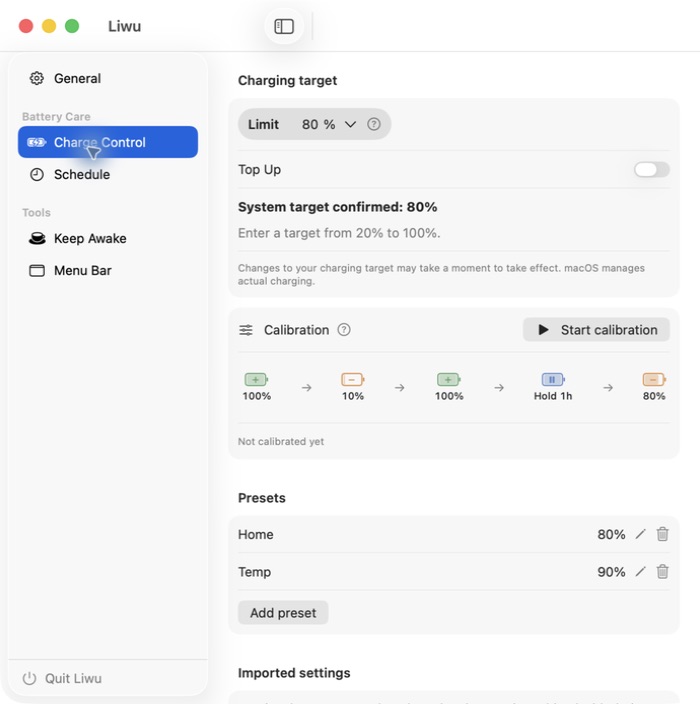
Liwu 2 supports Apple silicon MacBooks on macOS 26.7 or later. For setup steps, see how to limit MacBook charging to 80%.
- Targets from 20% to 100% are free. Without Sailing, targets from 80% use the macOS interface. Targets below 80% appear only after Liwu confirms that the firmware supports them on your Mac.
- Low targets behave differently. They are held by firmware, use raw battery capacity (so the percentage macOS displays can differ by a few points), and may actively discharge while the adapter is connected.
- Named presets are free, for a desk target and a travel target.
- Top Up (Pro) requests 100% while keeping your regular target, and returns to it when you end Top Up or unplug.
- Target plans (Pro) change the regular target on a schedule while Liwu is running: once, daily, weekly, biweekly, or monthly.
- Sailing (Pro) keeps your limit as the upper end of a range and waits for a drop of 5 to 20 percentage points before recharging, instead of holding one exact level. It needs the same confirmed firmware support as low targets.
Keep Optimized Battery Charging off while Liwu manages charging, and use one charging controller at a time. Before installing any limiter, the MacBook charge limiter safety checklist covers what to verify.
FAQ
Is it bad to leave a MacBook plugged in all the time?
Staying on power is a normal way to use a Mac laptop. What Apple's features try to reduce is the time the battery spends fully charged, and what its guidance warns about is heat. A limit addresses the first; where the Mac sits addresses the second.
Is 60% better for the battery than 80%?
It points in the direction of Apple's storage advice, but Apple publishes no figure for the difference, so nobody can tell you how much it helps. What is certain is the cost: a quarter less runtime than at 80%.
Do I need to unplug now and then to exercise the battery?
Apple's guidance cited here does not ask you to. It does say that a Mac using Optimized Battery Charging or Charge Limit will occasionally charge to 100% to maintain accurate battery state-of-charge estimates, and macOS handles that by itself.
Does a limit help if the Mac runs hot?
No. A limit reduces time at a high charge level. It does not lower temperature, and Apple treats temperature history as a separate factor in battery aging.
Can I use 80% at my desk and still get 100% for travel?
Yes. Choose Charge to Full Now in the macOS battery menu, or a top-up in your limiter, before you leave. For how the two built-in options differ, see macOS Optimized Battery Charging and Charge Limit, explained.